Technology & Architecture
iOS Managed Apps, Accounts, and Dynamics: Which Rule Applies?
For UEM administrators: distinguish iOS managed apps, managed accounts, and BlackBerry Dynamics to find the right rule before changing a policy.

Before you tighten or relax a policy, check that you're changing the right control. On an iPhone, that control may be at the device, app, or account level, or within Dynamics. Mix up these layers and you may miss a gap or block the wrong workflow. The diagram helps you find the control that applies before changing its settings.
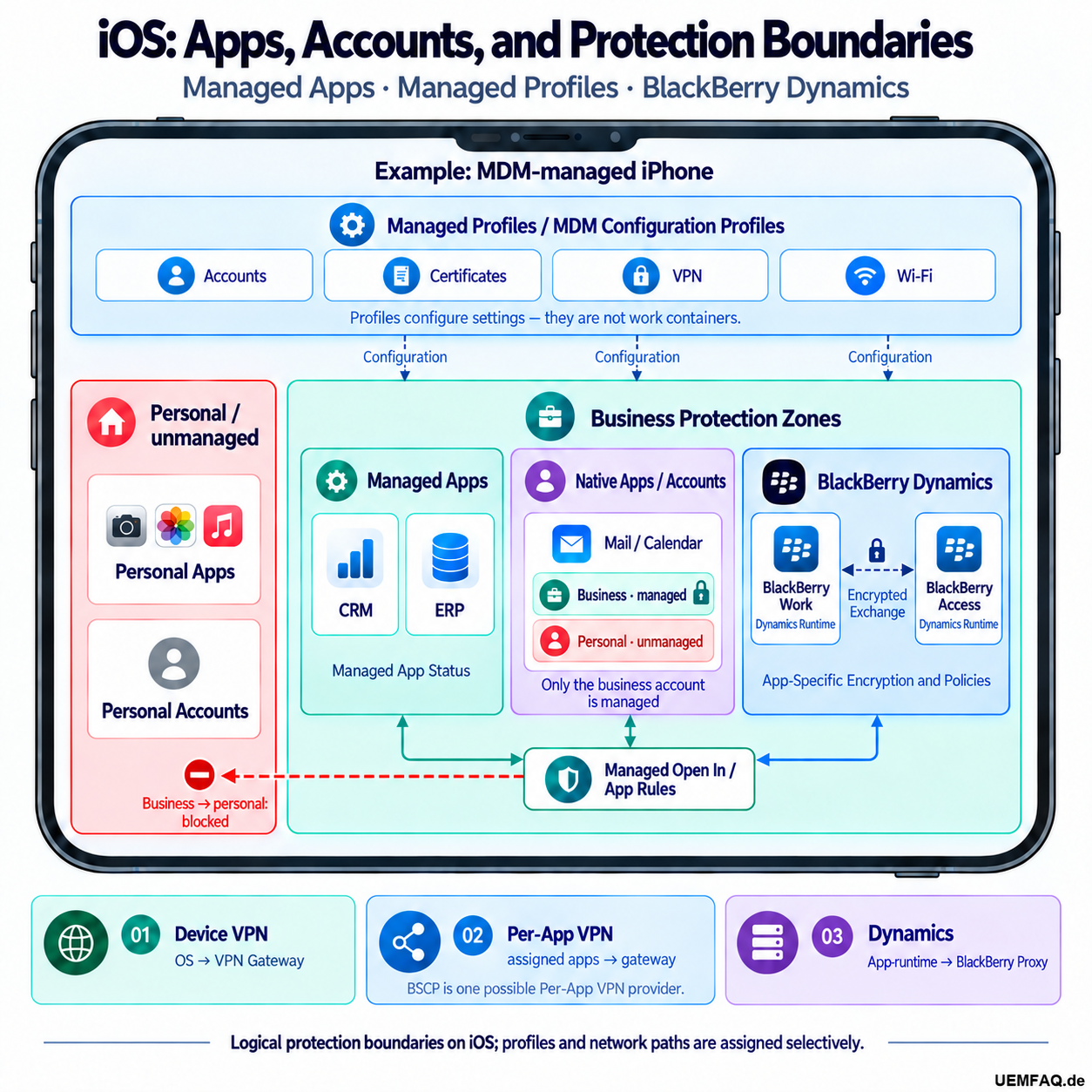
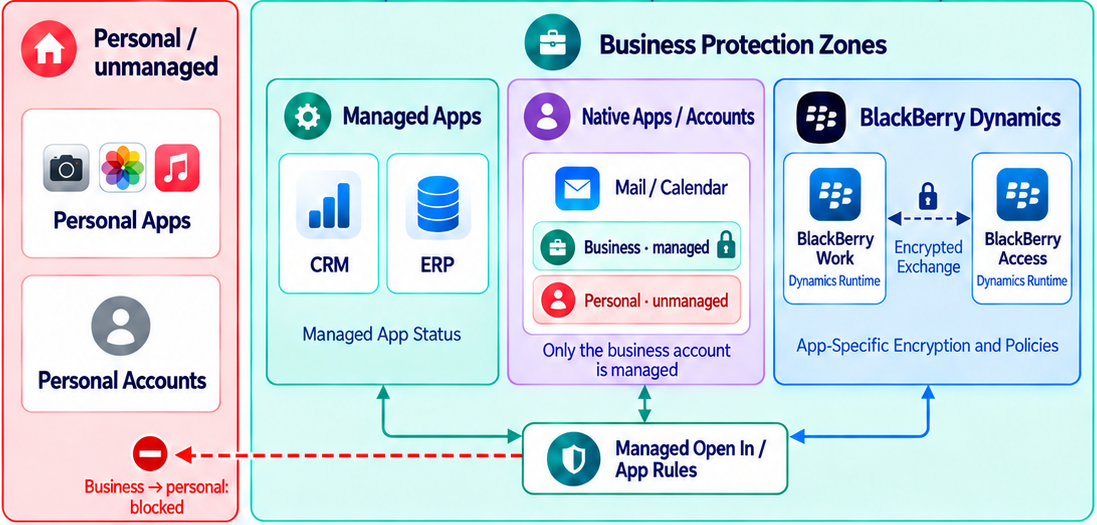
Read the diagram from top to bottom: the blue profile box first, then the three columns in the light turquoise work area. Personal apps and accounts are on the left, in red. The main sections follow this order. These areas are logical groupings, not additional iOS users. The red stop sign marks a restriction chosen for this example; device management does not create it automatically.
Managed Profiles and MDM Configuration Profiles
A new iPhone needs your organization's connection settings without you entering each one by hand. At the top of the iPhone is the blue Managed Profiles / MDM Configuration Profiles box. Its four tiles, Accounts, Certificates, VPN, and Wi-Fi, let administrators define how the device connects for work.

What do profiles tell the operating system?
Put simply, UEM sends the operating system a configuration: use this Wi-Fi network, connect to the mail server this way, and use this certificate.
Technically, UEM triggers a notification. The iPhone's MDM service retrieves the pending commands, processes them, and reports the status back. This is the diagram's top layer: the profile is an instruction to iOS. It does not create a second workspace on the device.
If the work connection fails, I'd first check whether the iPhone has processed the intended configuration. If the configuration hasn't arrived, changing a document-sharing rule won't help. If iOS has processed it, that step is complete, but it still doesn't prove the connection works.
We know how settings reach the device. To decide whether a work file may go to a personal app, we need to look at its source app.
Managed Apps
Used for work does not mean managed. Miss that distinction and you may rely on rules that don't cover this installation.
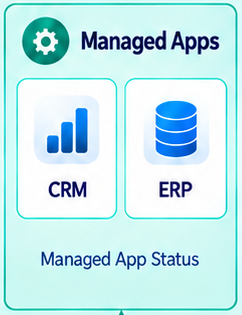
Suppose you want to edit company reports in your usual PDF app. Does using it for work make it a managed app?
Below the profile box are the light turquoise Business Protection Zones. The left column, Managed Apps, contains CRM and ERP. What matters here is how the app got onto the device.
How does an app become a managed app?
A managed app is one whose installation is under device management.
iOS assigns that status: the iPhone is enrolled with UEM through MDM, an administrator assigns the app, and UEM sends the device an installation command. Once installation succeeds, iOS treats the app as managed.
The status ties that specific installation to device management. An ordinary App Store app can become managed this way; it doesn't need a special "enterprise version."
Rules depend on this status. Managed Open In, for example, lets us control whether a document from a managed source may open in an unmanaged app. We can limit certain transfers between apps, but don't automatically get access to every function inside an app.
Keep in mind: For a document transfer, check both sides: is the source app managed, and is the destination app managed too? A company logo on the report isn't enough.
What happens to an app already installed for personal use?
Back to the PDF app already on the iPhone. In this iOS management scenario, that installation is either managed or unmanaged; it can't have both states at once. Bringing it under UEM management means taking over the existing installation. UEM does not install a second copy.
The UEM choices are Convert and Do not convert. Whether you can take over management depends on the enrollment method. Apple excludes app conversion for account-driven User Enrollment. Check whether the existing app can be converted before planning its work-related rules.
How is an Android work profile different?
An Android work profile can contain a second instance of an app you also use personally. The two instances have separate app data, so you can use both a personal and a work instance of the same app.
That differs from the iOS installation above. Check how the app is actually deployed before assuming one platform works like the other.
Native Apps and Accounts
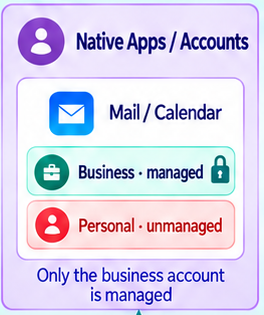
Two mailboxes, one Mail icon. Ask only about the app and you miss a distinction that may determine whether a transfer is allowed.
To the right of Managed Apps is the purple Native Apps / Accounts box, with Mail/Calendar and two account rows: work and personal. This is why the app name alone is sometimes not enough.
Which account did the attachment come from?
Some native apps can show work and personal accounts in the same interface. Apple Mail is one example: your work account configured through MDM sits alongside your personal account in one app.
A PDF attachment may come from either mailbox. Attachments from a managed account follow the Managed Open In settings configured for it. Sharing the Mail app does not bring the personal account under management.
This is what managed accounts means: the separation is at the account level. We haven't installed a second Mail app or made the whole interface a work area. "Doesn't work from Mail" is a little thin for a support request. From which account? That's the useful follow-up.
With the personal PDF app as the destination, an attachment from the managed work account falls under that account's Open In rule. For a personal attachment, the shared Mail icon alone doesn't justify the same restriction. To classify the transfer, we need the source account, destination app, and applicable rule. A successful personal transfer doesn't prove a gap in the work transfer.
| What matters for the transfer | Managed app | Managed account in a native app |
|---|---|---|
| Where is management status assigned? | To the app installation | To the individual account |
| What do we identify in the example? | The managed CRM app as the source | The managed work account as the source of the attachment |
| Which personal use needs separate consideration? | An unmanaged destination app | The personal account in the same Mail interface |
| What determines the document transfer we are examining? | Source status, destination status, and the applicable Open In rule | Source account, destination status, and the applicable Open In rule |
BlackBerry Dynamics
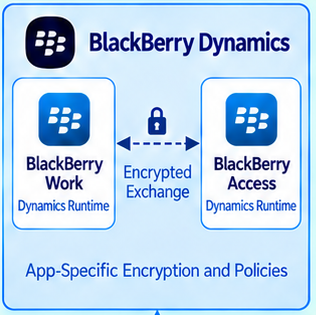
If an app needs its own access and data protection rules, we need to look beyond its MDM status.
At the far right of the work area, the blue BlackBerry Dynamics box contains Work and Access. The arrow between them and the label "App-Specific Encryption and Policies" show what Dynamics adds.
What does Dynamics protect within the app?
Dynamics adds app-level encryption and policies. The SDK provides encrypted storage and protected data exchange between Dynamics apps, such as Work and Access.
We can ask more specifically: What is this app allowed to do? May it copy data? Which apps may it pass files to? These are Dynamics controls, distinct from Apple's Managed Open In.
In the BlackBerry Dynamics profile, you can specify whether Dynamics also requires an MDM-managed device. The diagram shows an MDM-managed environment. Device management and Dynamics app protection remain separate decisions.
What happens when a file leaves Dynamics?
Once a file leaves Dynamics, the boundary matters. UEM has an option to open files unencrypted in selected non-Dynamics apps, provided the app version in use supports it. Encryption within Dynamics does not automatically follow every permitted export.
If you need to edit the Work report in a non-Dynamics PDF app, I'd check that specific export first: does your Work version support it, is the destination app selected, and is it acceptable to store the file there after an unencrypted handoff?
If the destination's protection isn't sufficient for the task, prior encryption in Dynamics won't help. We need another suitable way to edit the report. Allowing the transfer means deciding where the file will be stored next, not just choosing a more convenient Open dialog.
The arrow between Work and Access shows protected exchange within Dynamics. Both apps must support the relevant exchange function, and the rules must allow that specific transfer.
Managed Open In and App Rules
A protection rule only helps if you know which transfer it should prevent. Otherwise, you may block a workflow people need.
At the bottom of the work area is Managed Open In / App Rules, where the arrows from the three columns converge. The red arrow points left toward Personal / unmanaged. The diagram groups different controls here; our PDF example shows which apply to a specific transfer.
May the report go to the personal PDF app?
Suppose the PDF app stays personal. A company report is stored in the managed CRM app, and you want to edit it in that PDF app. That's opening a document in another app with a managed source, unmanaged destination. For this transfer, we check the iOS rules first.
The UEM setting is Allow documents from managed sources in unmanaged destinations, selected by default in UEM 12.24. Transfers covered by this rule are therefore initially allowed. To keep our report in the work area, the relevant IT policy must remove that permission. The diagram's red stop sign marks this deliberately configured boundary.
That's why I start with the action you want to control. "The iPhone is managed" tells us too little. "This file must not go from this app to that app" points to the rule that applies.
How can people still get their work done?
Where should the person edit the report instead? It's easy to leave that unanswered. If we block the handoff to the personal PDF app, we need a suitable work alternative. Otherwise, we have a successful block and an unfinished task. Both belong in the same test.
How do you test this specific boundary?
To test this boundary in your environment, I'd start small: a nonsensitive PDF, a known source app, a personal destination app, and the intended work destination app are enough for the first run.
First, the administrator checks the actual app status, activation type, and assigned rule, then whether the device has processed the configuration. Only then do we try both paths: the personal handoff should fail, and editing the report for work should succeed. How the dialog shows a block depends on the apps involved. A missing menu item alone doesn't prove our specific rule took effect.
Copy/paste needs a separate test. UEM can bind the clipboard to the two Managed Open In directions through a separate rule. Check whether it's available for your activation type and iOS version.
Pitfall: Blocking a document from opening proves neither a copy/paste restriction nor protection of every other export path.
Record the tested workflow, including the apps, versions, and policy settings in effect. The next administrator will know which boundary you tested, and the person using the iPhone will know how to get their work done.
Device VPN, Per-App VPN, and Dynamics
Reaching a destination and passing data on are different problems. Mix them up and we may troubleshoot a connection failure in an export rule.
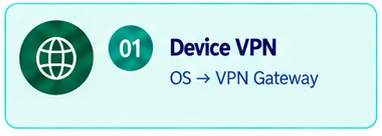
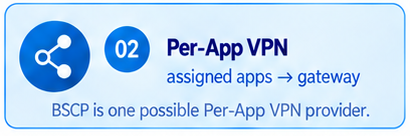
Below the iPhone frame are three tiles: Device VPN on the left, Per-App VPN in the middle, and Dynamics on the right. They add the network path to the protection areas.
Is the problem network access or transferring the file?
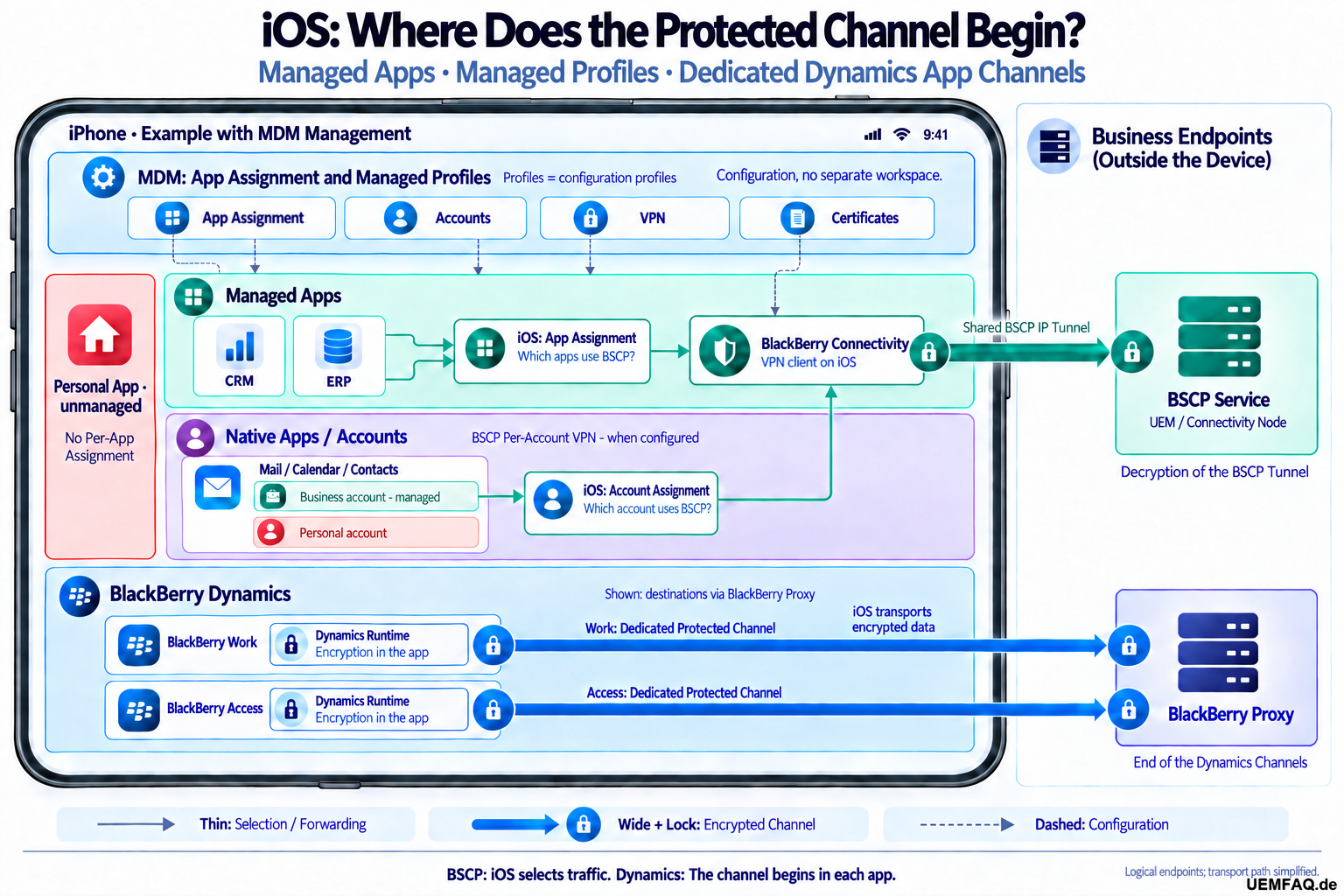
These tiles show how the app reaches its network destination. With per-app VPN, assigned apps' traffic goes through the tunnel. The Dynamics path shown uses BlackBerry Proxy for destinations configured to use it.
If the app can't load our report from the work server at all, start with reachability; sign-in or permissions may also prevent retrieval. If this connection should use per-app VPN, the app must be assigned to the intended tunnel. Assignment alone doesn't prove the connection works.
If the app can load a fresh copy of the same report from the server and display it, but can't then open it in the personal PDF app, check that transfer and the app rules first. Loading the report proves the connection path just used, not automatically every network function.
The network path brings our report to the app. The transfer rule determines whether it may then go to another app. Keep those questions separate and the big, colorful diagram becomes a useful map.
Start with a real workflow and go through its apps and accounts. Then you can set the right boundary without losing sight of the task.
Documentation baseline: BlackBerry UEM 12.24; Apple, Android, and Dynamics primary sources checked on October 5, 2026. The PDF report is hypothetical.
Further Reading: BSCP and Dynamics on the iPhone
The right sharing rule doesn't tell us where the protected transport path begins. What does the app protect, and what does the tunnel handle? The next article, "BSCP and Dynamics on the iPhone: Which Path Fits Your Work?" (in German), compares both paths from the administrator, security, and user perspectives.
Sources
- Apple Platform Deployment – Managed Apps: deployment, taking over management, and its limits.
- Apple Platform Deployment – Organizational data: managed accounts, Managed Open In, and the clipboard.
- Android Open Source Project – Work profiles: separate app instances and app data in the personal and work profiles.
- BlackBerry Dynamics SDK for iOS: encrypted storage and protected exchange between apps.
- BlackBerry UEM 12.24 – Managing apps, pp. 9, 37–38, and 43–44: taking over existing apps, Dynamics requirements, and data exchange.
- BlackBerry UEM 12.24 – IT policy rules, pp. 38–39: both Open In directions and copy/paste.
- BlackBerry UEM 12.24 – Overview and Architecture, pp. 56–57 and 66: the Dynamics network path and configuration flow.
- BlackBerry UEM 12.24 – Managing secure connections, pp. 40–41: device and per-app connections.